What Works, What Still Looks Terrible, and the Workflow I’d Actually Use
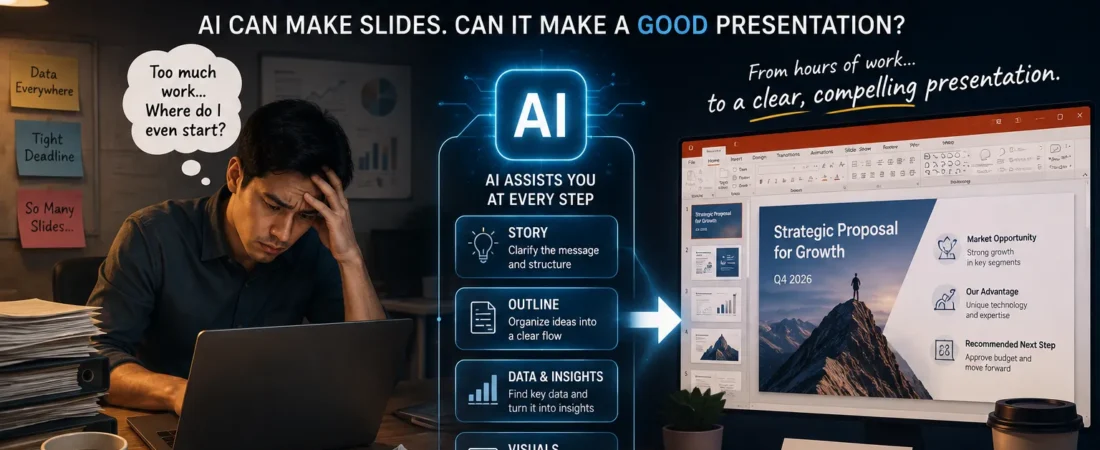
An AI PowerPoint generator can now turn a simple prompt, document, or idea into a complete set of slides in minutes. But creating slides quickly and building a presentation that actually persuades an audience are two very different things.
There is a particular moment at work that almost everyone recognizes.
The meeting is tomorrow.
The analysis is mostly finished.
The numbers exist.
You know roughly what you want to say.
And then someone says:
“Can you put this into a deck?”
Suddenly, three hours disappear.
Open PowerPoint.
Choose a layout.
Write a title.
Move a box.
Resize the box.
Move it back.
Search for an image.
Realize the image looks terrible.
Build a chart.
Fix the chart.
Change the font.
Align six objects by two pixels.
It’s difficult to describe this as high-value intellectual work.
So when AI presentation tools began promising:
Create an entire presentation in seconds.
I understood the appeal immediately.
But there’s an important question hidden inside that promise.
Can AI actually make a good presentation—or can it only make slides?
Those are very different things.
Making Slides Is the Easy Part
Give an AI a topic:
Create a presentation about the future of electric vehicles.
A few moments later, you may have:
- a title slide,
- market trends,
- technology,
- challenges,
- opportunities,
- conclusion.
It looks like a presentation.
There are headings.
Images.
Bullet points.
Maybe even charts.
Technically, the task is complete.
But imagine presenting it to your CEO tomorrow morning.
What exactly is the argument?
What should the audience believe after slide 7?
Which number changes the decision?
Why does slide 4 exist?
What action should happen after the meeting?
That’s where many AI-generated decks begin to fall apart.
They contain slides.
They don’t necessarily contain a story.
A Presentation Is Not a Document Cut Into Rectangles
This is probably the most common mistake in bad presentations.
Someone has a 20-page report.
They summarize each section.
Put the summaries onto slides.
Done.
AI can automate that extremely well.
Unfortunately, the result is still usually a bad presentation.
A presentation isn’t simply compressed information.
It’s controlled attention.
At any moment, the audience should understand:
What am I looking at?
Why does it matter?
What should I think next?
That’s much harder than generating bullet points.
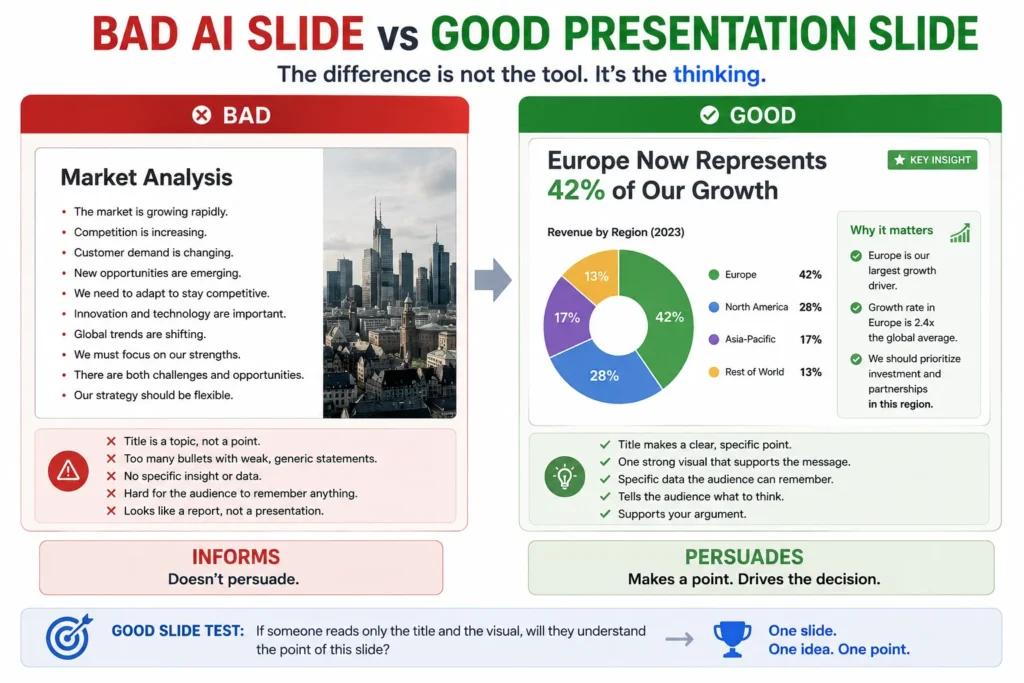
The Slide Test I Use
Take any slide.
Hide everything except the title.
Now ask:
Does the title tell me what this slide is actually saying?
Bad title:
European Market
Better:
Europe Now Represents 42% of Our Growth
Bad:
Project Schedule
Better:
The Current Schedule Leaves No Room for Supplier Delay
Bad:
Customer Feedback
Better:
Customers Like the Product—but They Don’t Understand the Price
The second versions do something important.
They make a claim.
That’s the beginning of a presentation.
And it’s something AI can help with surprisingly well—if you ask the right question.
Don’t Ask AI to Make the Deck First
If I had a presentation due tomorrow, I wouldn’t begin with:
Create 15 slides.
I’d begin with:
Here is the situation. What does this audience actually need to understand before they can make the decision?
Then I’d work on the story.
Suppose I’m asking management to approve a new supplier.
The deck might need to establish:
- Why the current supplier is becoming risky.
- What happens if nothing changes.
- Which alternatives exist.
- Why Supplier B is the strongest option.
- What switching will cost.
- What decision is required today.
That’s already more valuable than fifteen beautifully designed slides.
Because now we know why the presentation exists.
Where ChatGPT Fits
ChatGPT can be extremely useful before PowerPoint even opens.
Give it:
- the audience,
- the objective,
- your rough notes,
- the decision you need,
- supporting evidence.
Then ask it to challenge the structure.
For example:
I’m presenting this to the CFO. Which slides would they consider unnecessary?
Or:
What question is the CEO likely to ask after slide 3?
Or:
Turn these section titles into conclusion-style slide headlines.
This is where conversational AI becomes particularly useful.
Not as a slide designer.
As a thinking partner before design begins.
Where Claude Fits
Now imagine the source material is much larger.
A 60-page strategy report.
Three research papers.
Meeting notes.
A long project review.
Before building slides, someone has to understand the material.
That’s where Claude can become useful.
Ask it to identify:
- major arguments,
- contradictions,
- recurring themes,
- supporting evidence,
- weak assumptions,
- missing questions.
Then decide what deserves to become a slide.
This distinction matters.
The presentation shouldn’t contain everything AI found.
It should contain the information the audience needs.
Where Gamma Fits
Tools such as Gamma attack the problem from the opposite direction.
Instead of beginning inside traditional PowerPoint, they make it possible to turn a prompt or outline into a visually structured presentation extremely quickly.
For:
- first drafts,
- internal presentations,
- educational content,
- simple proposals,
- idea exploration,
that speed can be incredibly useful.
You can go from nothing to something presentable before you’ve finished choosing a PowerPoint theme.
But speed introduces a temptation.
The first generated deck looks polished enough that you stop questioning the structure.
That’s dangerous.
A beautiful generic presentation is still generic.
Where Canva Fits
Canva is particularly interesting when the problem isn’t only structure.
It’s visual communication.
Brand assets.
Images.
Layouts.
Social graphics.
Presentation templates.
For marketing-oriented decks, educational presentations, creator content, and visually driven storytelling, that ecosystem can be extremely useful.
But again, the design tool cannot answer the hardest question:
What deserves to be on the slide?
That’s still editorial judgment.
Where PowerPoint Copilot Fits
There’s also an obvious advantage to AI living directly inside the software where the presentation will ultimately be delivered.
If your organization already works heavily in Microsoft 365, staying inside PowerPoint can reduce friction.
You don’t necessarily want to generate a beautiful deck somewhere else and then spend an hour rebuilding it because:
- fonts changed,
- layouts broke,
- charts aren’t editable,
- corporate templates disappeared,
- animations didn’t transfer.
For business presentations, editability matters.
A slide isn’t finished when it looks good.
It’s finished when someone can still change the number five minutes before the meeting.
The Editable Slide Problem
This is one of the biggest tests I would apply to any AI PowerPoint generator: can I actually edit what it creates?
Suppose AI creates a beautiful chart.
Then finance sends you a message:
Revenue is 18.4, not 17.9.
Can you change the underlying number?
Or did AI essentially give you a picture of a chart?
Suppose it generates a process diagram.
Can you move one box?
Change one label?
Add another stage?
Change the company color?
If not, the presentation may look finished while being surprisingly difficult to work with.
That’s why I care about editability almost as much as visual quality.
The Five-Minute-Before-the-Meeting Test
Imagine the meeting begins in five minutes.
Someone says:
Remove slide 8.
Easy.
Then:
Combine slides 4 and 5.
Still manageable.
Then:
Update the chart with today’s numbers.
Then:
Change the recommendation because legal rejected Option B.
Then:
We need the entire deck in our corporate template.
This is where presentation tools reveal whether they were built for demos or real work.
A beautiful generated deck isn’t enough.
It needs to survive revision.
AI Is Surprisingly Good at Killing Bad Slides
One of my favorite uses of AI isn’t generating presentations.
It’s attacking them.
Upload or describe your deck and ask:
Which three slides should I delete?
Then:
Where am I repeating the same argument?
Then:
Which slide contains information but no conclusion?
Then:
If the audience remembers only three things, what should they be?
This can be uncomfortable.
That’s why it’s useful.
Most presentations don’t suffer from having too little information.
They suffer from refusing to delete enough.
The One-Slide Rule
For an important business deck, I’d apply one simple test.
Every slide should answer:
Why is this slide here?
If the answer is:
To provide background.
Not good enough.
What does the background prove?
If the answer is:
Because management asked for this data.
What should management notice in the data?
If the answer is:
Because this chart is important.
What conclusion does the chart support?
AI can help you interrogate every slide this way.
And that’s much more valuable than asking it to generate another one.
The Workflow Is Starting to Become Obvious
The more I look at AI presentation tools, the less I think the winning workflow will be:
Prompt → Presentation → Done.
It will look more like:
Problem
→ Audience
→ Decision
→ Research
→ Story
→ Slide Headlines
→ Evidence
→ Visuals
→ Generate
→ Edit
→ Delete
→ Rehearse
AI can participate in almost every step.
But it shouldn’t necessarily own every step.
Because the most important presentation decision still happens before anyone chooses a template:
What does this audience need to understand?
Get that wrong and no amount of AI design will save the deck.
Get it right and even simple slides can be extraordinarily persuasive.
The AI Presentation Workflow I’d Actually Use
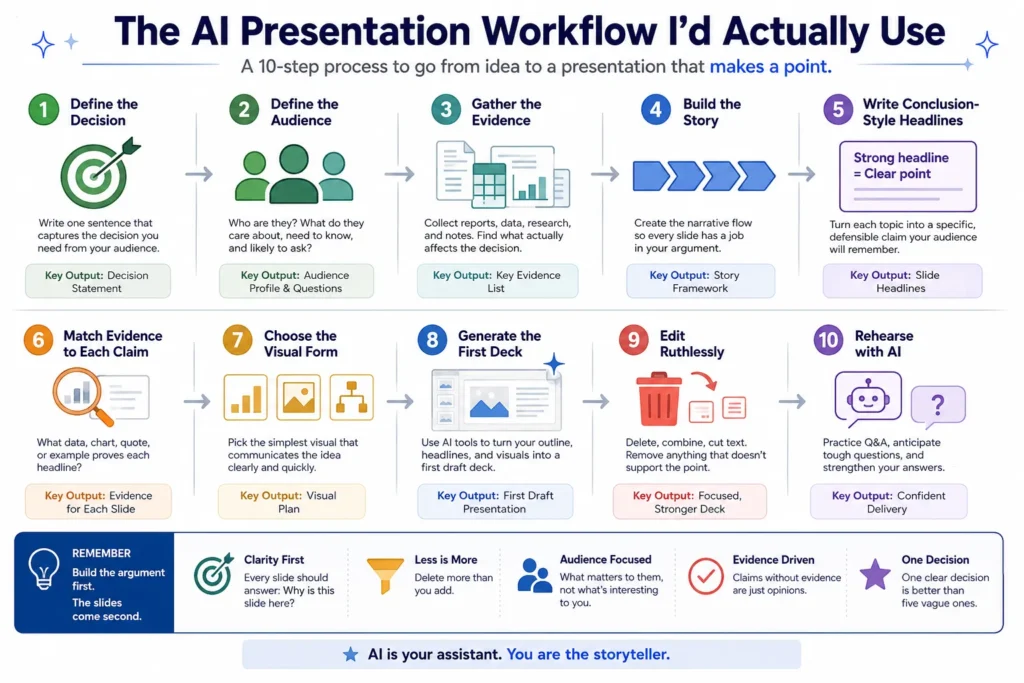
If I had an important presentation tomorrow, I wouldn’t ask one AI to create everything.
I’d divide the work.
Not because AI can’t generate a complete deck.
Because different parts of presentation-making require different kinds of thinking.
Here’s the workflow I’d use.
1. Define the Decision
Before generating anything, write one sentence:
At the end of this presentation, I want the audience to ______.
Approve the budget.
Choose Supplier B.
Delay the launch.
Understand the risk.
Support the strategy.
If you can’t finish that sentence, you’re not ready to build slides.
2. Define the Audience
The same information should produce different presentations for different people.
A CFO asks:
What will this cost?
An engineer asks:
Will this work?
A CEO asks:
Why does this matter now?
A customer asks:
What’s in it for me?
AI can help anticipate those questions, but you need to tell it who’s in the room.
3. Gather the Evidence
Now bring in:
- reports,
- spreadsheets,
- research,
- meeting notes,
- customer feedback,
- financial data.
This is where tools capable of working with documents become valuable.
But don’t ask for slides yet.
Ask:
Which evidence actually affects the decision?
That one question can remove half the material.
4. Build the Story
Create the argument before the deck.
For a business recommendation, it might be:
Situation
→ Problem
→ Evidence
→ Options
→ Recommendation
→ Risk
→ Decision
Now every slide has a job.
5. Write Conclusion-Style Headlines
Don’t write:
Market Analysis
Write:
The Market Has Shifted Faster Than Our Current Plan Assumes
Don’t write:
Supplier Comparison
Write:
Supplier B Costs More—but Cuts Our Largest Schedule Risk
If someone reads only the slide titles, they should understand the argument.
That’s an excellent AI task.
Give AI your outline and ask it to turn every topic title into a specific, defensible claim.
6. Match Evidence to Each Claim
Now ask:
What evidence proves this slide title?
A number.
A chart.
A quote.
A timeline.
A comparison.
A photograph.
If you can’t find evidence, either the claim is too strong or the slide isn’t ready.
7. Choose the Visual Form
Only now should design begin.
Ask what communicates the idea fastest.
If you’re comparing two numbers, don’t build a complicated diagram.
If you’re showing change over time, use a chart.
If you’re showing a process, use a flow.
If one photograph tells the story, use the photograph.
And sometimes the right visual is nothing.
One sentence on an empty slide can be more powerful than twelve icons.
8. Generate the First Deck
This is where Gamma, Canva, PowerPoint Copilot, or another presentation tool can save enormous time.
You already know:
- the audience,
- the argument,
- the headlines,
- the evidence,
- the visual intent.
AI isn’t inventing your presentation anymore.
It’s assembling it.
This is a useful example of a broader AI principle: delegate execution where it saves time, while keeping ownership of the judgment that determines the final result.
That’s a much safer job to delegate.
9. Edit Ruthlessly
Now delete.
Not add.
Delete.
Ask:
Can this presentation survive without slide 6?
If yes, remove it.
Then slide 9.
Then three bullets.
Then half the text on slide 12.
A presentation often improves faster through subtraction than addition.
10. Rehearse With AI
This may be one of the most underrated uses.
Tell AI:
Pretend you’re the CFO. Interrupt me with the hardest questions you would ask during this presentation.
Or:
I’m presenting this proposal to a skeptical customer. What objections should I prepare for?
Or:
Which claim in this deck is hardest to defend?
Now AI becomes the audience before the real audience arrives.
That’s genuinely useful.
Where Each AI Tool Fits
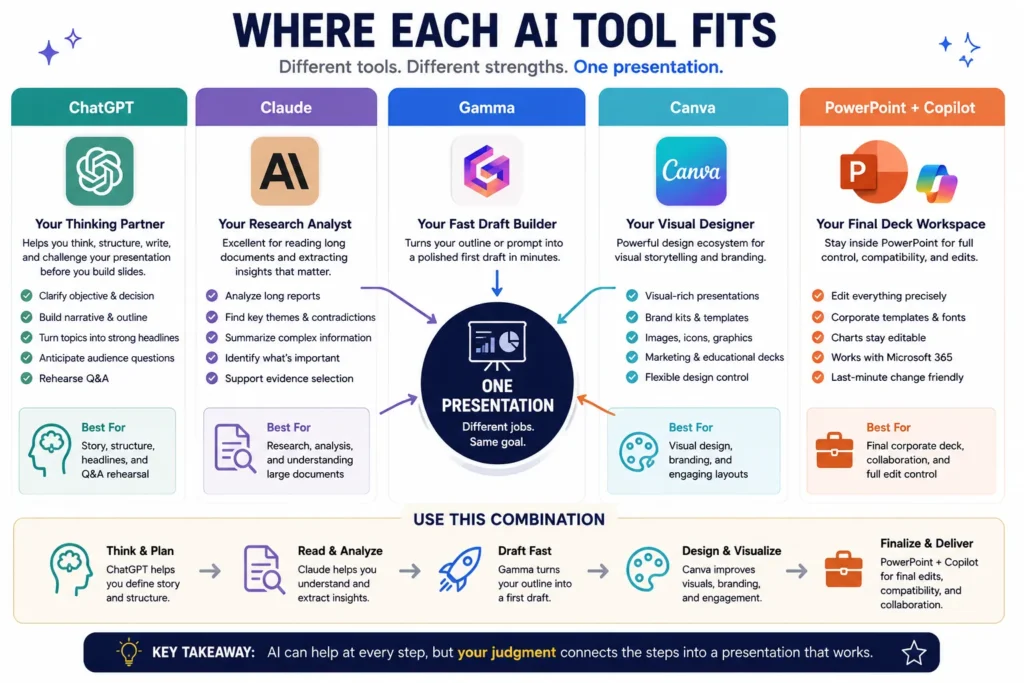
Once the workflow is clear, choosing tools becomes much easier.
ChatGPT
I’d use it heavily for:
- clarifying the objective,
- challenging the argument,
- building the narrative,
- rewriting slide headlines,
- generating alternative structures,
- anticipating audience questions,
- rehearsing Q&A.
Claude
I’d consider it when the presentation begins with substantial reading:
- long reports,
- research papers,
- strategy documents,
- extensive notes.
The goal isn’t for Claude to make the slides.
It’s to help understand what deserves to become one.
If you’re deciding which assistant better fits your broader workflow, our Claude vs ChatGPT comparison looks at their strengths across different kinds of work.
Gamma
I’d use Gamma when speed from outline to polished first draft matters.
It’s particularly attractive when you need something visually coherent quickly and don’t want to begin with a blank slide canvas.
Canva
I’d lean toward Canva when visual assets and design flexibility are especially important:
- marketing,
- education,
- creator presentations,
- visually rich storytelling.
PowerPoint with Copilot
For corporate work, there’s an enormous advantage to finishing where the organization already works.
Editable PowerPoint files.
Corporate templates.
Existing charts.
Colleague revisions.
Last-minute changes.
That boring compatibility can be more valuable than the most impressive AI-generated design.
What About Charts?
This is where I would be careful.
AI can suggest:
Use a bar chart.
Great.
It can help explain what a chart shows.
Also useful.
But if a chart represents real business data, the numbers need to remain traceable to the source.
I don’t want a chart that merely looks plausible.
I want to know:
- where every number came from,
- whether the scale is appropriate,
- whether categories are complete,
- whether the comparison is fair,
- whether the latest data is being used.
For important presentations, AI should help communicate the data.
It shouldn’t invent the data.
Never Turn a Spreadsheet Into a Screenshot Too Early
Suppose you have a revenue chart.
If possible, keep the underlying data editable.
Why?
Because someone will change it.
They always do.
Revenue gets updated.
Forecast changes.
A category is renamed.
A month gets added.
If your beautiful AI chart is effectively an image, you’re rebuilding it.
For business presentations, I would sacrifice a little visual magic for editability almost every time.
AI Images Can Help—But They Can Also Make the Deck Look Like AI
There is now almost no limit to the images you can generate.
That’s exactly why restraint matters.
A presentation containing ten glossy AI illustrations can begin to feel strangely synthetic.
Especially when every image contains:
- dramatic lighting,
- perfect people,
- futuristic interfaces,
- glowing blue objects.
Use generated imagery when it communicates something.
Don’t use it simply because an empty area exists.
White space is allowed.
Your slide doesn’t need to prove that you own an image generator.
Speaker Notes May Be One of the Best AI Uses
This is an area where AI can save time without interfering with the visual presentation.
Give it the slide.
Then ask:
Write three speaker-note bullets explaining what I should say without repeating the text visible on screen.
That’s important.
Speaker notes shouldn’t be a transcript of the slide.
The slide gives the audience the signal.
You provide the explanation.
AI can help build that second layer.
For Students, the Rules Change Slightly
A student presentation isn’t necessarily trying to win a business decision.
It may need to demonstrate understanding.
That’s a crucial difference.
If AI creates:
- the research,
- the argument,
- the slides,
- the notes,
- the answers to likely questions,
the presentation may look excellent while revealing very little about what the student actually learned.
So I’d apply the same test we used when discussing AI study tools:
Could you give the presentation if AI disappeared?
If not, the tool probably did too much.
Use AI to:
- improve structure,
- critique slides,
- practice questions,
- simplify complicated explanations,
- explore visual ideas.
But understand the presentation well enough to survive without the script.
The same principle applies to studying more broadly: the best AI for students should improve understanding rather than simply complete the assignment.
The Biggest AI Presentation Failure: Generic Intelligence
This may sound contradictory.
AI knows a lot.
That’s exactly why it can produce presentations that say remarkably little.
Consider:
Digital transformation is rapidly changing the business landscape.
True.
Also almost useless.
Or:
Companies must embrace innovation to remain competitive.
Again, difficult to disagree with.
And difficult to remember.
AI-generated decks often contain statements that sound intelligent because they’re broadly correct.
Strong presentations are usually much more specific.
Not:
Supply chain resilience is important.
But:
A Seven-Day Delay at Our Current Supplier Would Stop Production in October
Now we have something to discuss.
Specificity is one of the best defenses against generic AI content.
Another Failure: Too Much Text
AI loves complete sentences.
PowerPoint doesn’t.
If a slide contains four paragraphs explaining the argument, the presenter has lost control of attention.
The audience starts reading.
You start talking.
Everyone processes different information at different speeds.
A useful rule:
If the audience can read the entire presentation without you, you may have created a document—not a presentation.
That’s not always bad.
But know which one you’re making.
Another Failure: Everything Looks Equally Important
AI-generated layouts often make every slide beautifully balanced.
The problem is that arguments aren’t balanced.
One number may matter ten times more than everything else.
Make it huge.
One risk may determine the entire decision.
Give it a slide.
One sentence may be the whole point.
Remove everything around it.
Visual hierarchy isn’t decoration.
It’s an argument about what deserves attention.
AI-Only vs AI + PowerPoint
So could you simply generate the entire deck and present it?
Absolutely.
For:
- quick internal updates,
- informal educational material,
- early concepts,
- low-stakes presentations,
that may be perfectly reasonable.
But for:
- executive presentations,
- client proposals,
- investor decks,
- major project reviews,
- important academic presentations,
I’d choose a hybrid workflow.
AI + PowerPoint.
AI helps with:
- research,
- structure,
- critique,
- headlines,
- visuals,
- first drafts.
PowerPoint gives you:
- precise editing,
- corporate compatibility,
- chart control,
- layout control,
- collaboration,
- last-minute survival.
And you provide the part neither tool can safely own:
the argument.
The Presentation Scorecard I’d Use
If I were evaluating an AI presentation tool, I wouldn’t score it only on design.
I’d use:
Story
Does the deck have a clear argument?
Slide Quality
Does each slide communicate one useful idea?
Editability
Can individual elements be changed easily?
Data Integrity
Can charts remain connected to trustworthy numbers?
Visual Control
Can I change layout, hierarchy, typography, and branding?
Speed
How much real time does the tool save?
Revision
Can the deck survive major changes?
Compatibility
Can colleagues continue editing it in the environment they use?
Export Quality
Does the presentation still work after export?
Usable Slide Rate
How many generated slides would I actually keep?
That last metric should sound familiar.
If AI generates 20 slides and you delete 14, the system didn’t really create a 20-slide presentation.
It created six usable slides and fourteen drafts.
That’s a much more honest way to measure productivity.
The Metric: Time per Usable Slide
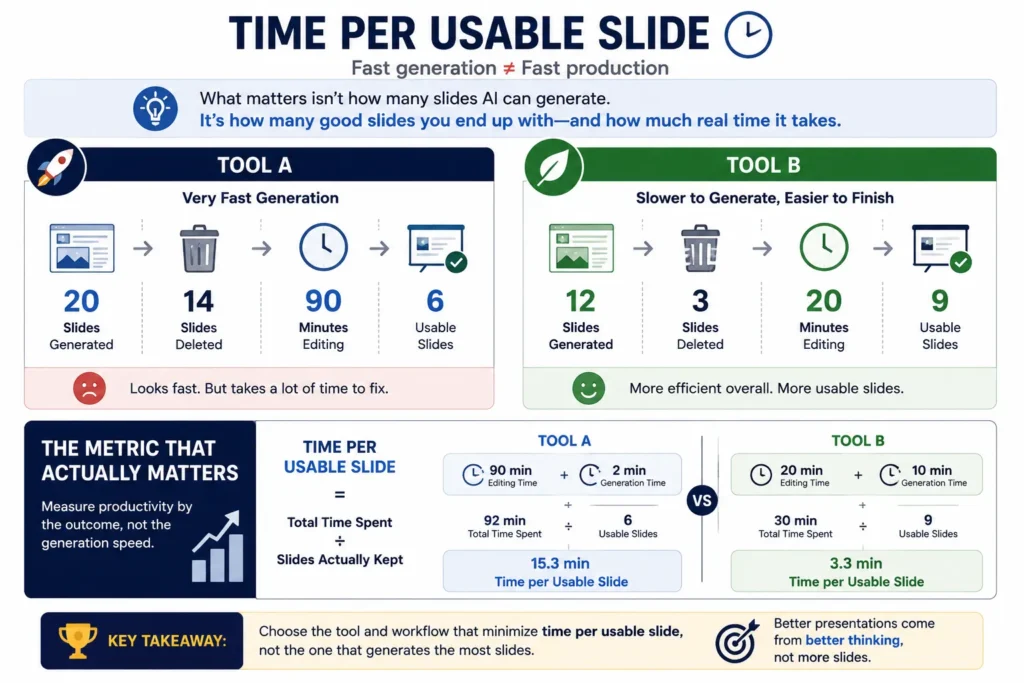
Imagine Tool A creates twenty slides in two minutes.
You spend ninety minutes fixing them.
Tool B creates twelve slides in ten minutes.
You spend twenty minutes editing them.
Which one is faster?
The generation timer doesn’t answer that.
I’d rather measure:
Total time spent ÷ slides actually kept
Call it:
Time per Usable Slide.
Just like cost per usable clip in AI video or cost per usable idea in AI music, it measures the thing we actually care about.
Finished work.
Not generated volume.
Final Thoughts
So, can AI really build a PowerPoint presentation for you?
Yes.
Easily.
That’s no longer the interesting question.
The harder question is:
Can AI build the presentation you actually need to give?
That’s different.
AI can create layouts.
Write bullets.
Generate images.
Suggest charts.
Summarize documents.
Produce speaker notes.
It can eliminate a remarkable amount of mechanical presentation work.
That’s valuable.
But the most important parts of a presentation remain strangely resistant to automation.
What does the audience need to understand?
Which evidence matters?
What should be deleted?
Which risk deserves attention?
What decision are you asking people to make?
Those are editorial decisions.
And editorial decisions are what transform slides into a presentation.
So I wouldn’t use AI to avoid PowerPoint.
I’d use it to spend less time doing the parts of PowerPoint that never deserved three hours in the first place.
Aligning boxes.
Reformatting text.
Trying five structures.
Summarizing background.
Generating first drafts.
Let AI handle more of that.
Then spend the saved time on the one question your audience will actually care about:
Why should I believe you?
If the deck answers that clearly, nobody in the meeting will care whether AI helped build slide 7.
They’ll care that slide 7 made the decision obvious.
Frequently Asked Questions
Can AI create a complete PowerPoint presentation?
Yes. Modern AI tools can generate presentation structures, slide text, layouts, images, and in some cases editable presentation files. The quality of the final deck still depends heavily on the argument, source material, editability, and human revision.
What is the best AI for making presentations?
There isn’t one universal winner. ChatGPT and Claude can help with thinking, research, and structure; Gamma and Canva can rapidly generate visually polished presentations; and Microsoft Copilot can be useful when the final workflow needs to remain inside PowerPoint and Microsoft 365.
Is Gamma better than PowerPoint?
They solve somewhat different problems. Gamma can be very fast for generating a polished first presentation from an outline, while PowerPoint provides the granular editing, compatibility, corporate templates, and last-minute control many professional workflows require.
Can ChatGPT make PowerPoint slides?
ChatGPT can help develop the story, outline, slide headlines, content, speaker notes, and visual direction. Depending on the available product capabilities and workflow, it may also help create presentation artifacts, but the important question is whether the resulting deck remains editable and practical for your final presentation environment.
Should students use AI to create presentations?
AI can help students organize ideas, improve slides, simplify explanations, and rehearse questions. Students should still understand and be able to explain the material themselves, particularly when the presentation is intended to assess learning.
What should I check before using an AI-generated presentation?
Check factual accuracy, source data, slide purpose, narrative flow, chart integrity, editability, branding, export quality, and whether every slide contributes something the audience actually needs.